Try it out
Chat with your AI agent the way a person would, then see what your workflow did.
Webchat is the chat window for your website. Proto has already set one up for you, called Default Webchat.
Add your AI agent’s icon
-
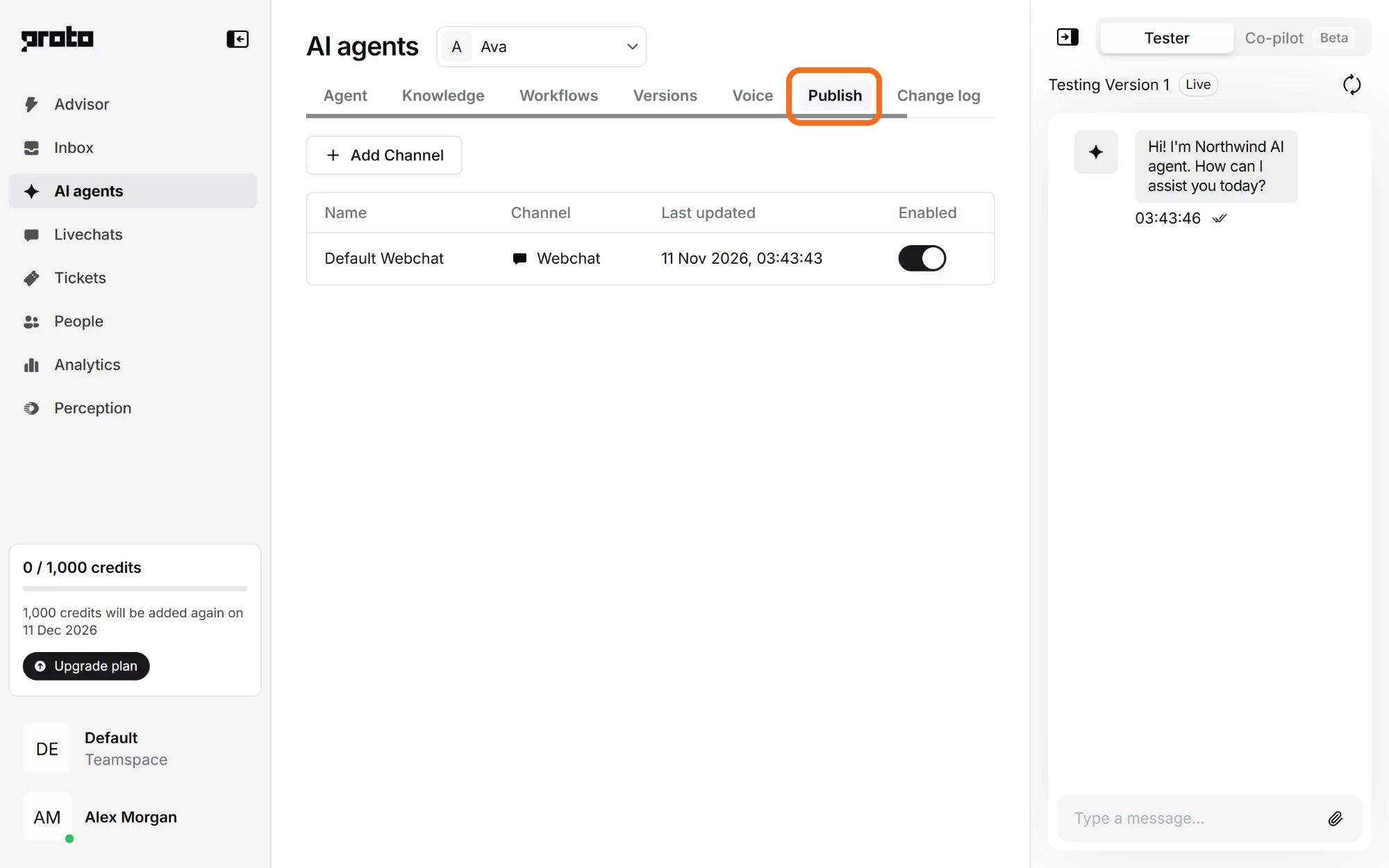
In the sidebar, select AI agents, then the Publish tab.
-
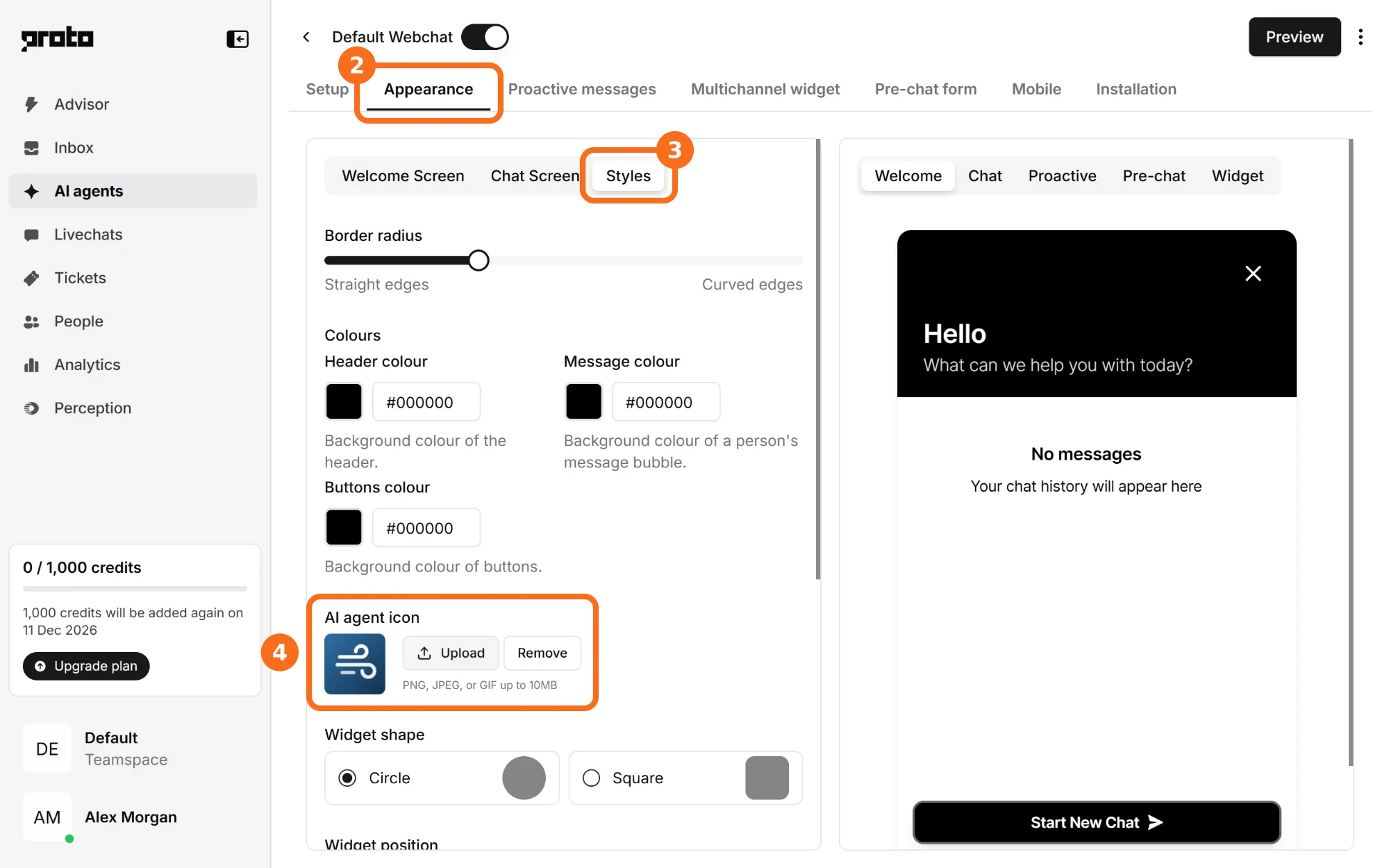
Select Default Webchat, then the Appearance tab.
-
Select Styles.
-
Under AI agent icon, select Upload and choose an image, such as your logo.
-
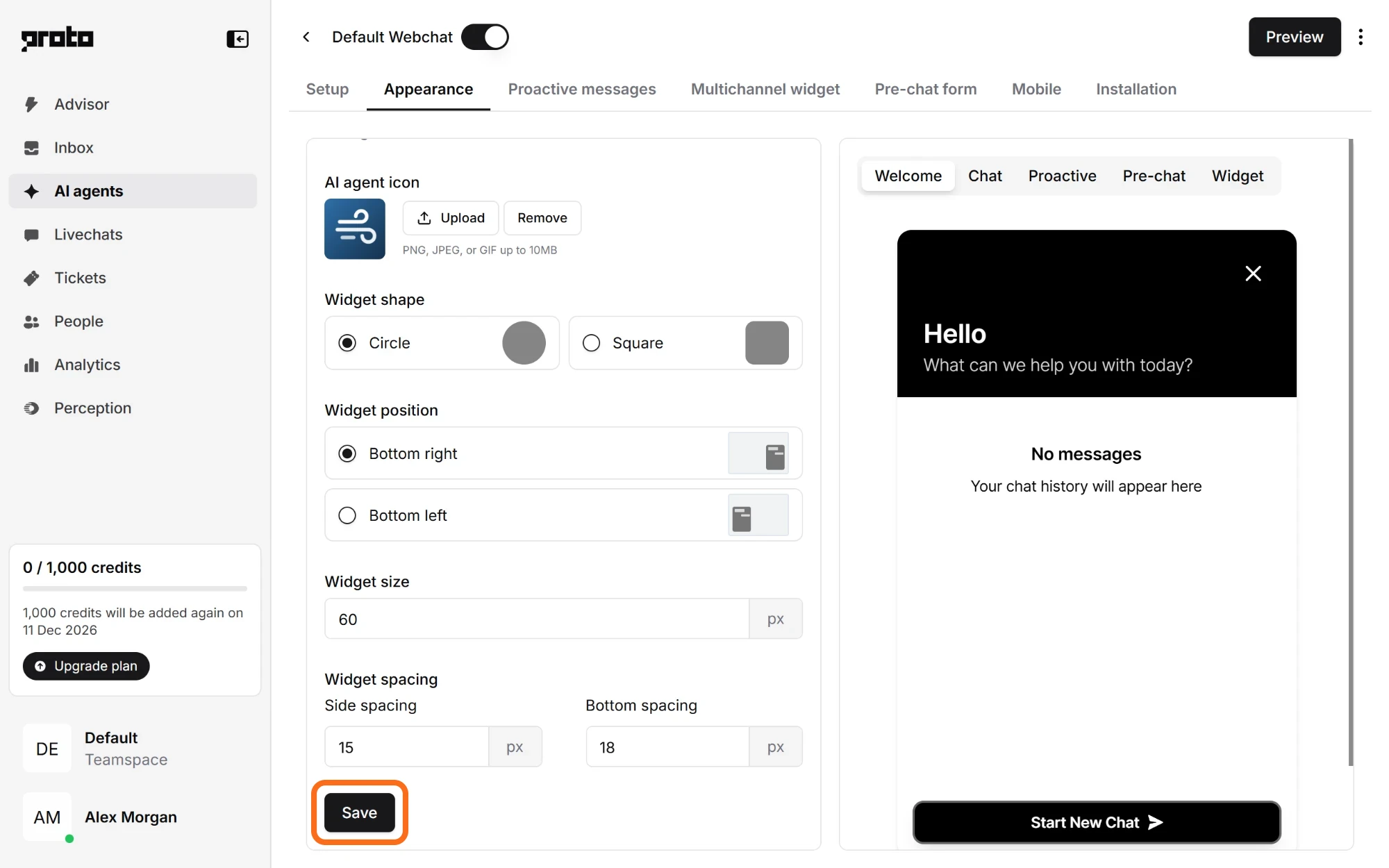
Select Save, at the bottom of the section.
Open the demo page
-
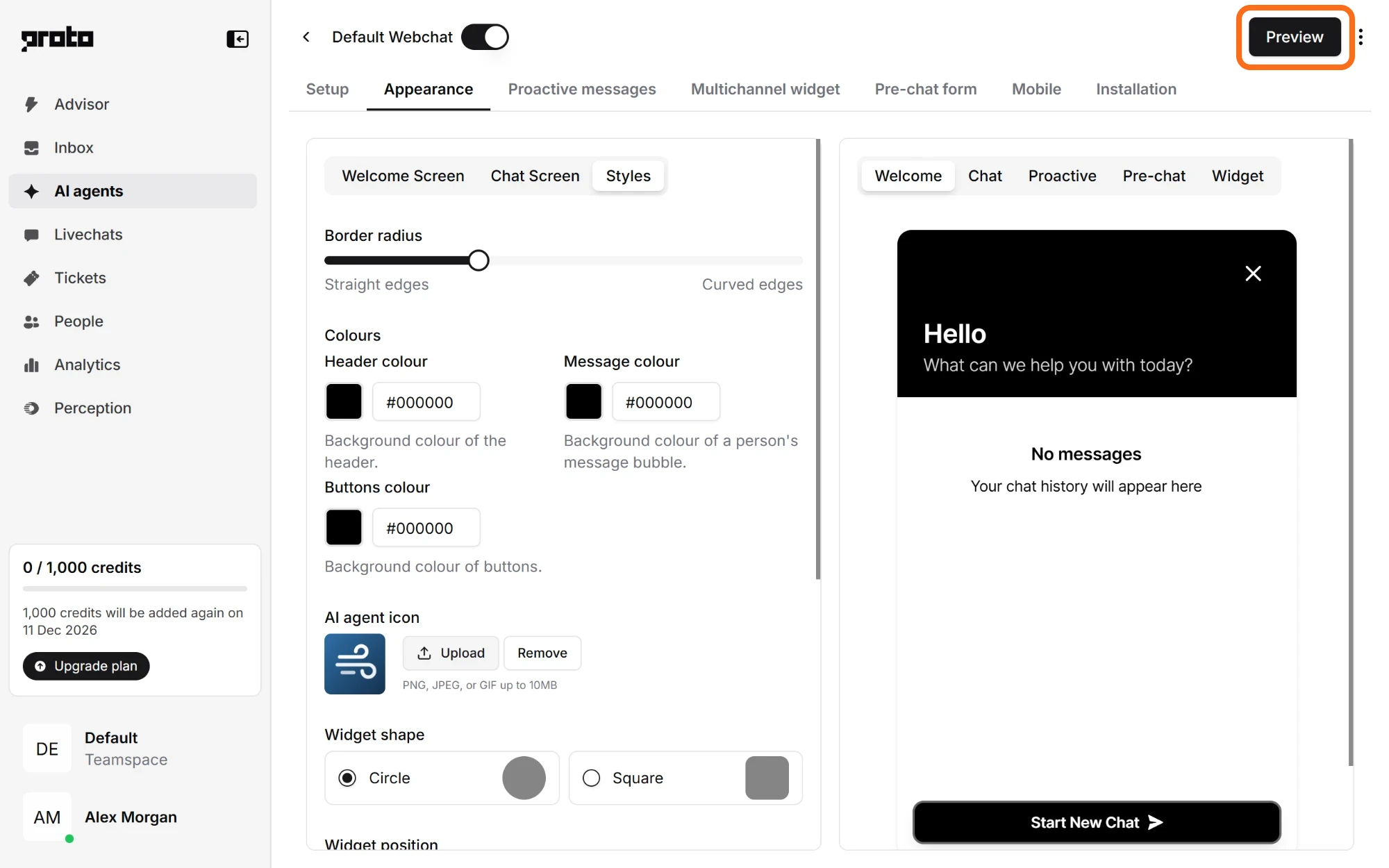
Select Preview, in the top right. A demo page opens in a new tab, with your Webchat on it.
-
Wait a few seconds. When your AI agent’s icon appears in the bottom right, select it. The chat opens.

-
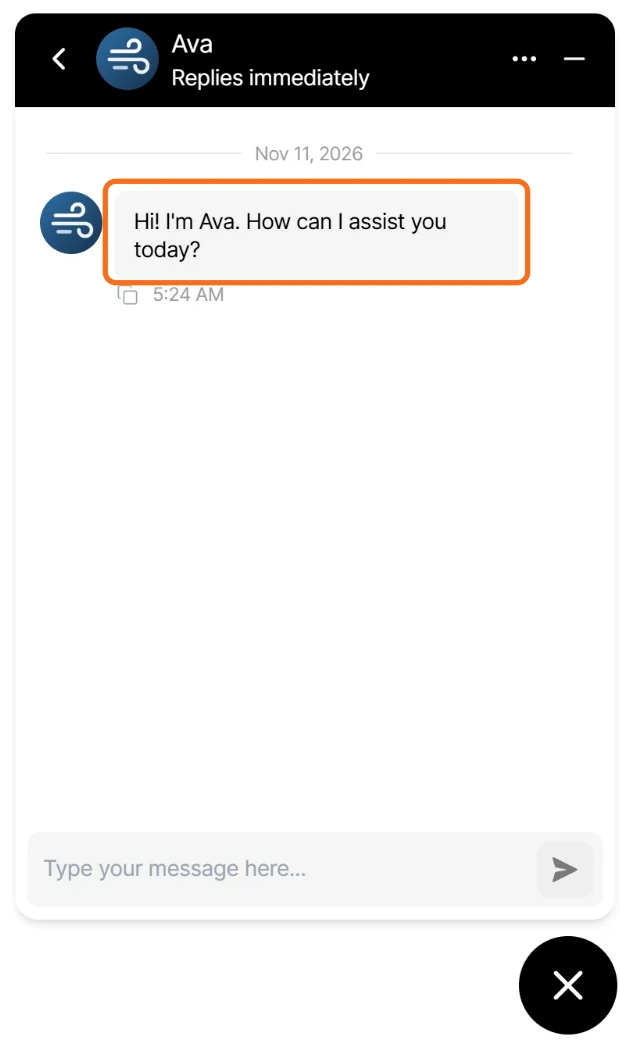
Check that your AI agent says hello, using the name you gave it.
Which workflow did you set up?
File a complaint
-
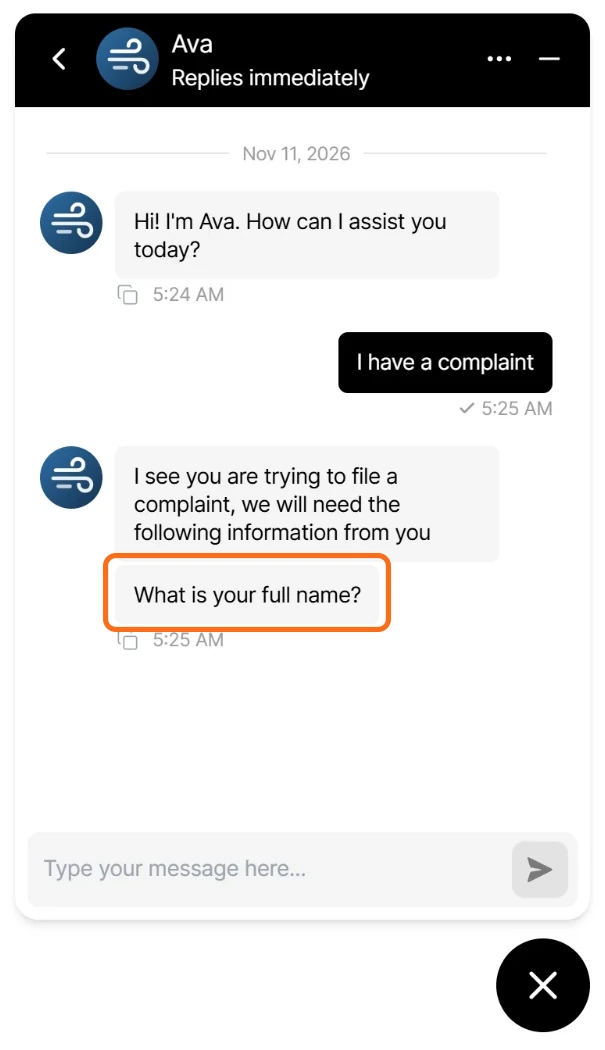
Type I have a complaint. Your AI agent starts the workflow and asks for your full name.
-
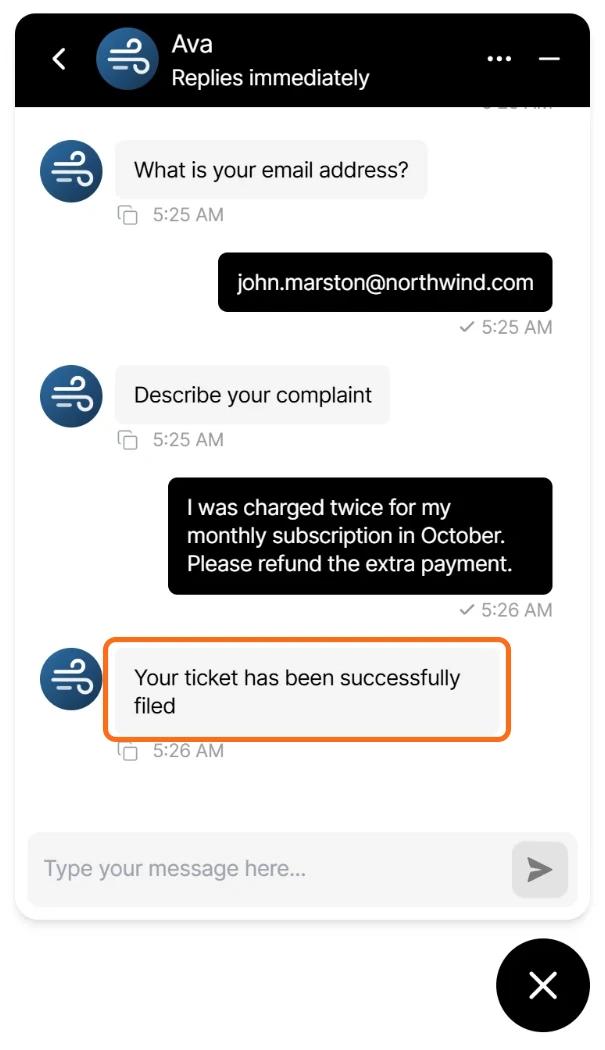
Answer your AI agent’s questions: your full name, your email address and your complaint. If you enter an email address that isn’t valid, it asks again.
-
Check that your AI agent confirms your ticket has been filed.
Find the ticket
-
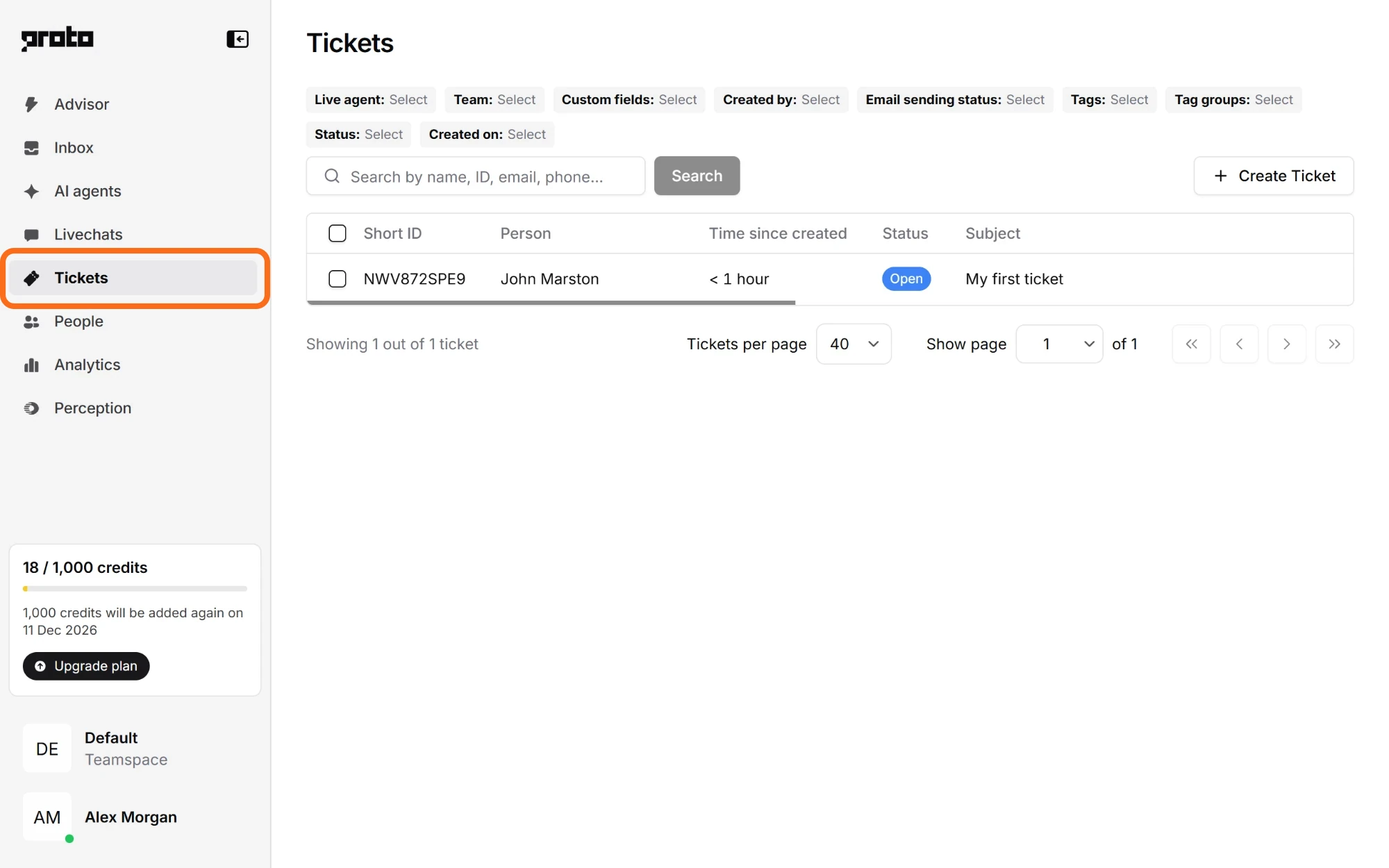
In the sidebar, select Tickets.
-
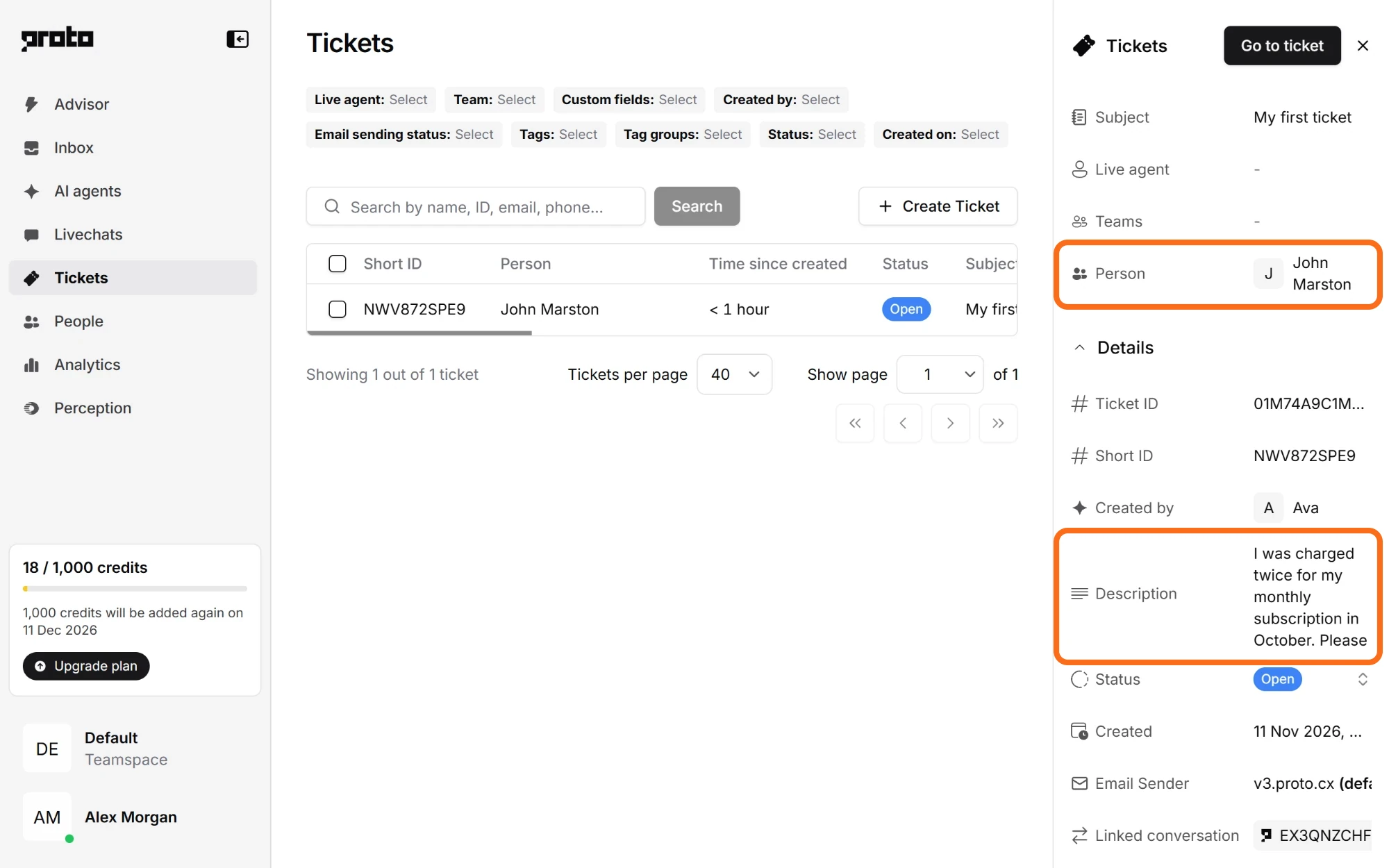
Select My first ticket, at the top of the list. Its details open on the right.
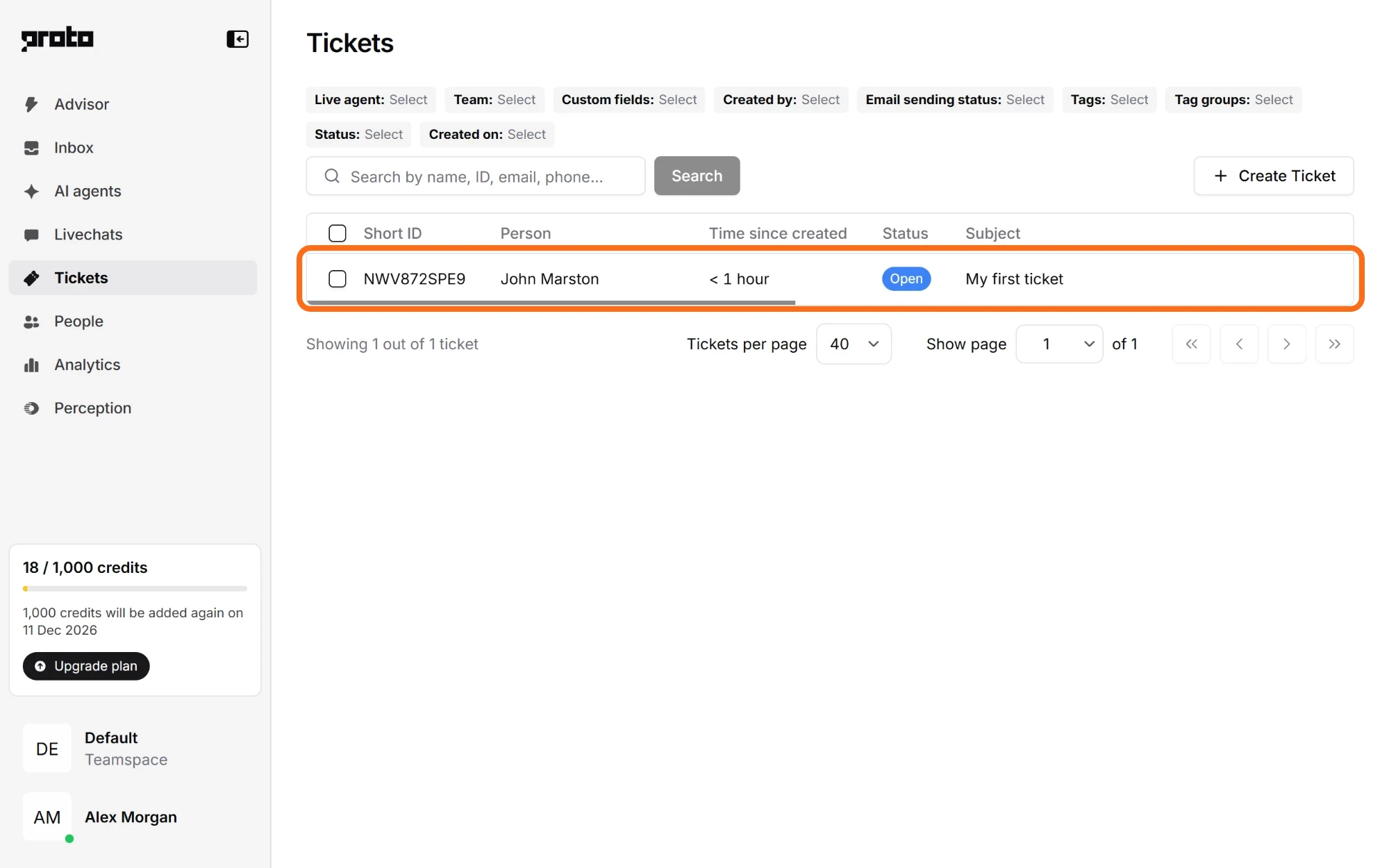
Checkpoint: the ticket shows the name and complaint you entered in the chat.
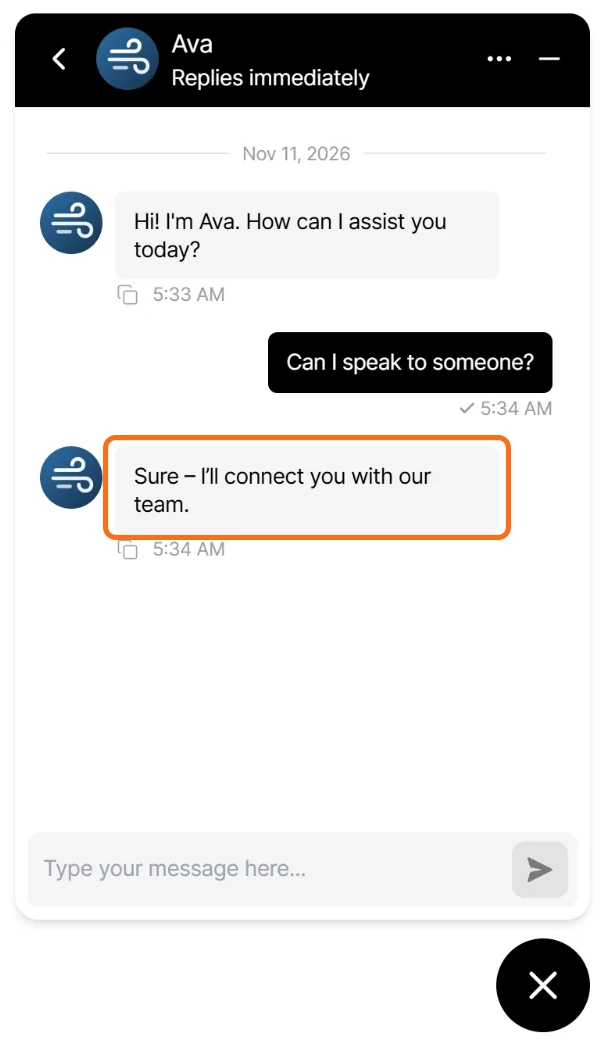
Ask for a person
- Type Can I speak to someone?
- Check that your AI agent replies “Sure – I’ll connect you with our team.” It then hands the chat over to your team.
Reply from the Inbox
The Inbox is where your team answers chats.
-
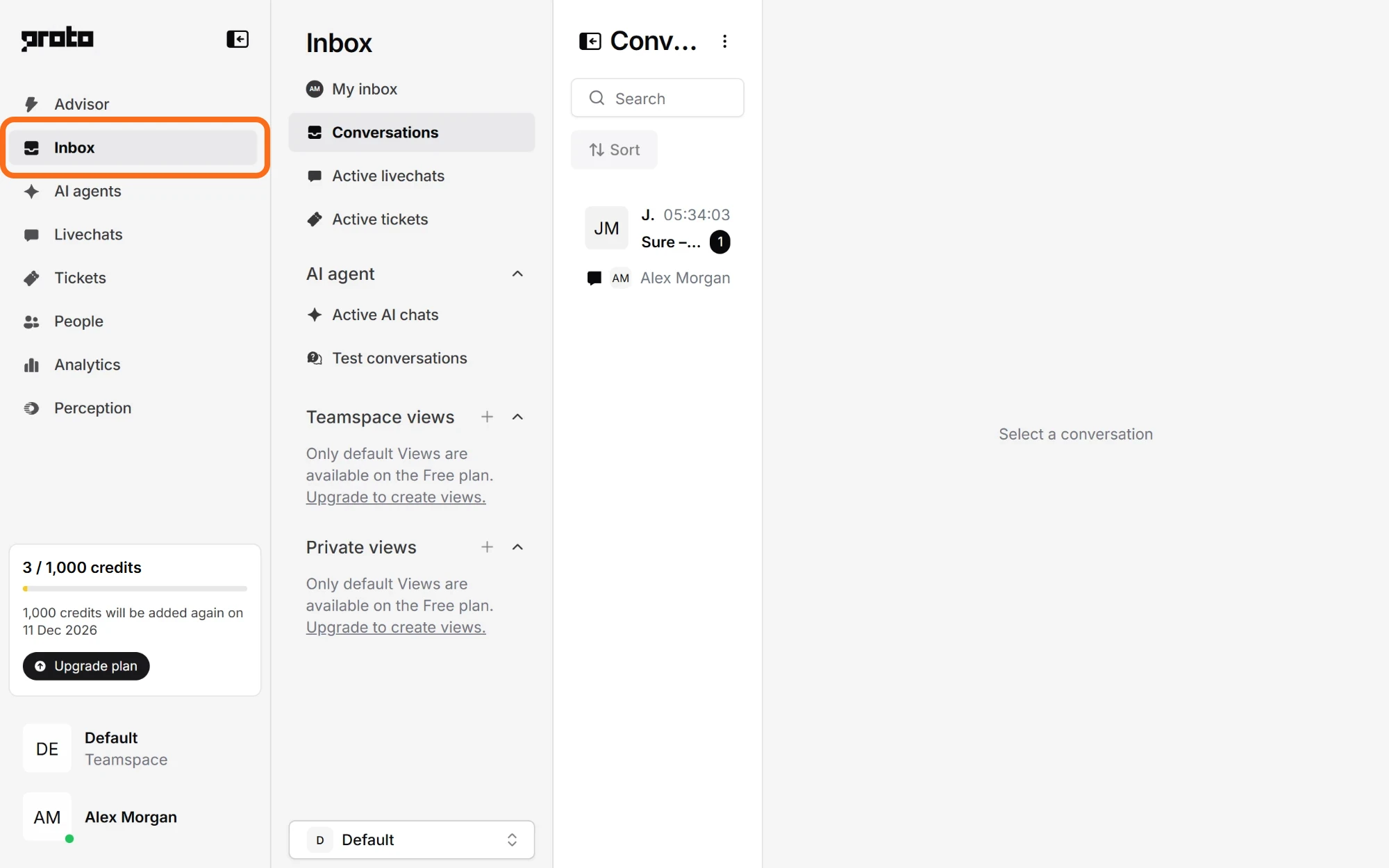
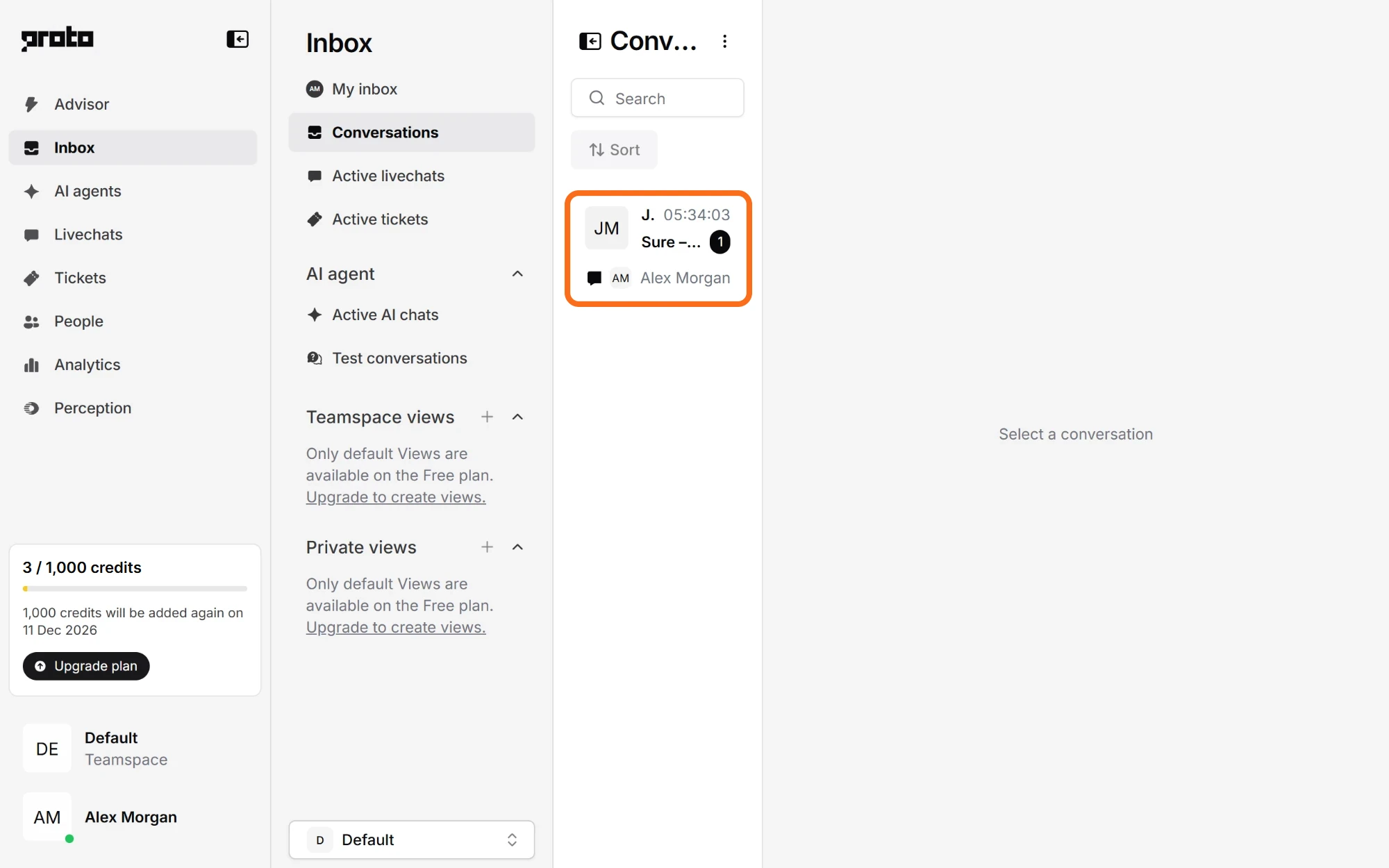
In the sidebar, select Inbox.
-
In Conversations, open the chat you just started.
-
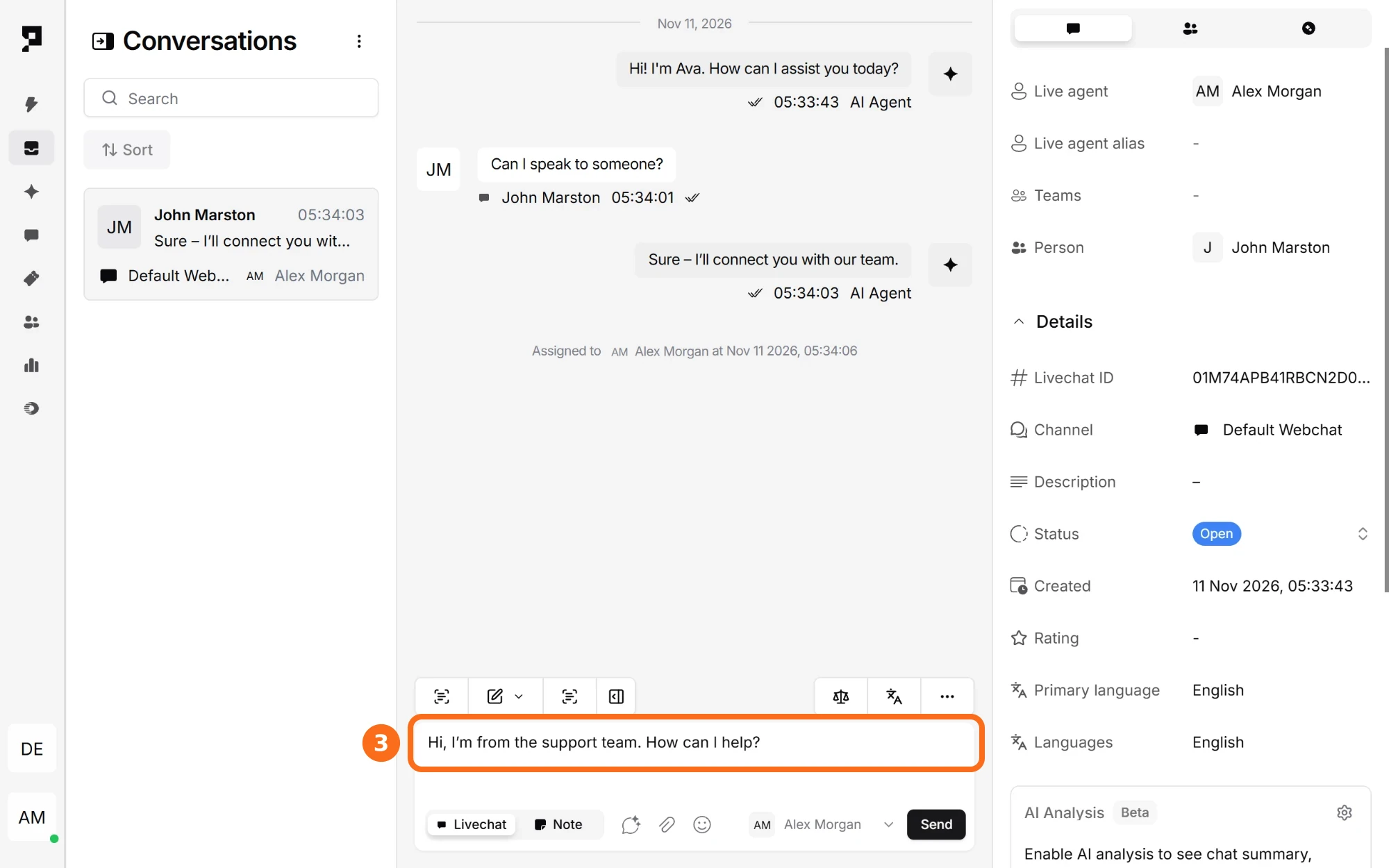
In the message box, write a reply, such as Hi, I’m from the support team. How can I help? Keep Livechat selected – Note is for internal notes.
-
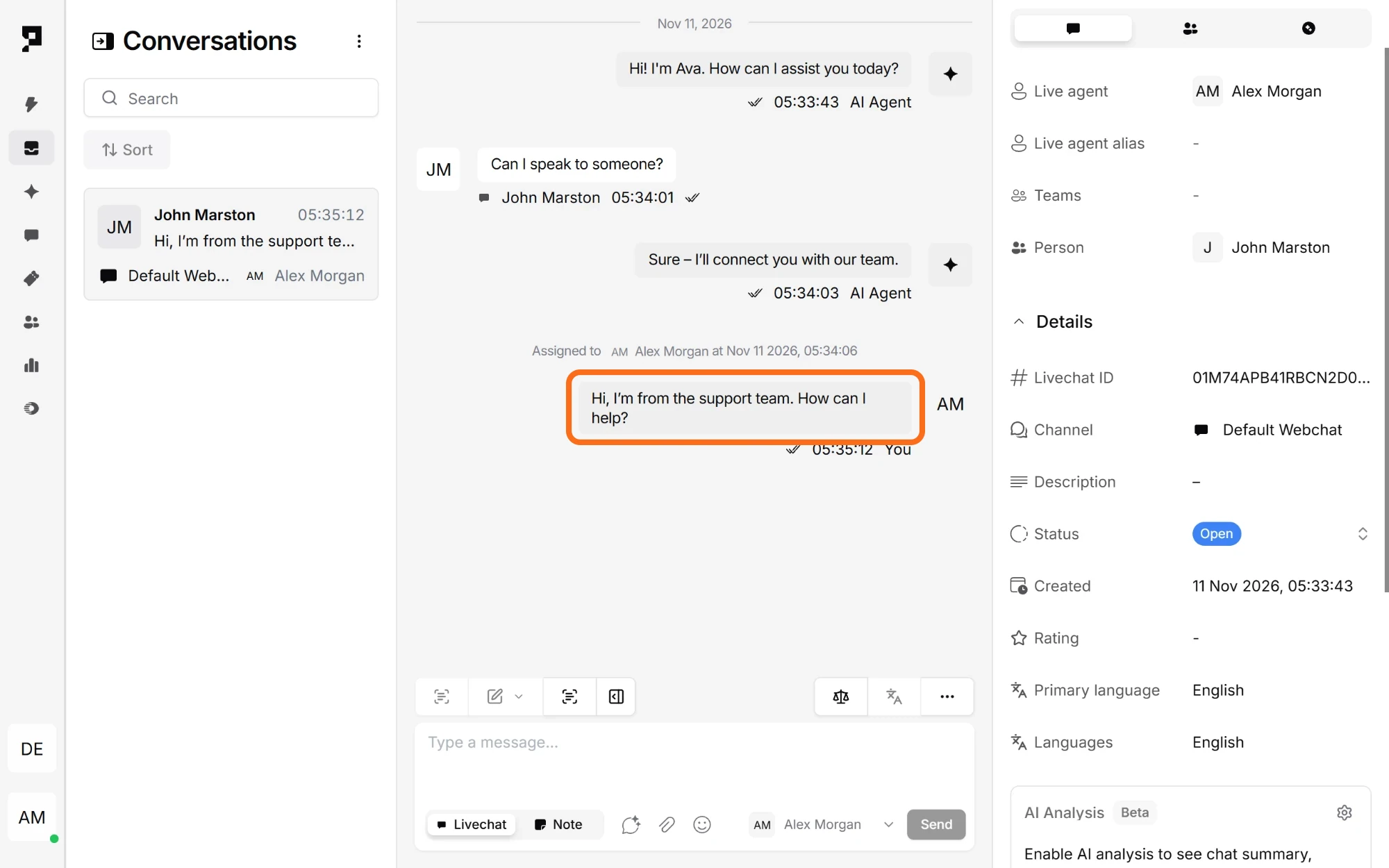
Select Send.
-
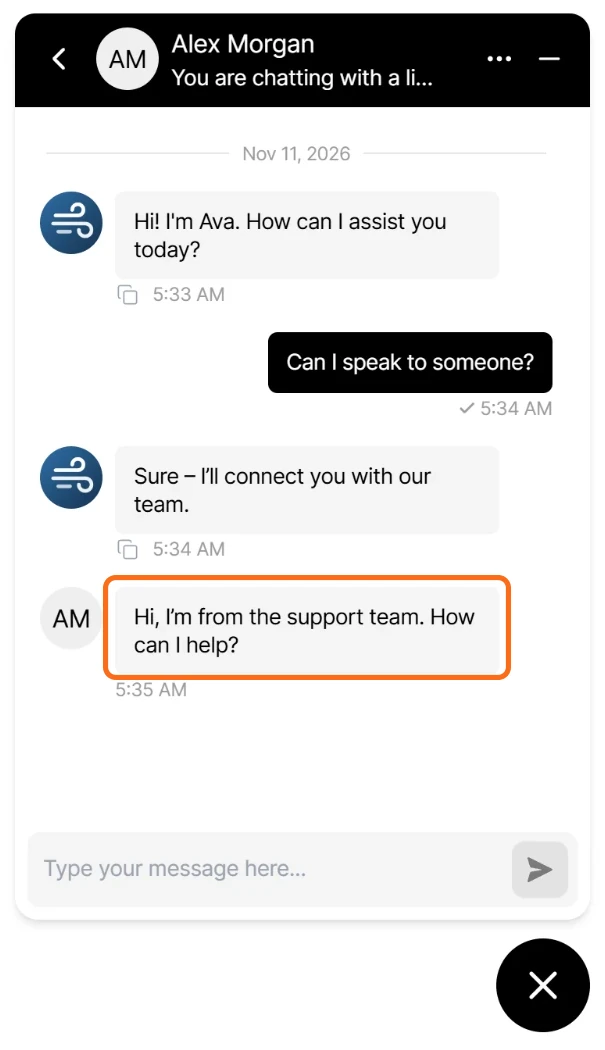
Go back to the demo page.
Checkpoint: your reply appears in the chat, just as the person would see it, and the header now shows your name instead of your AI agent’s.
Ask questions
-
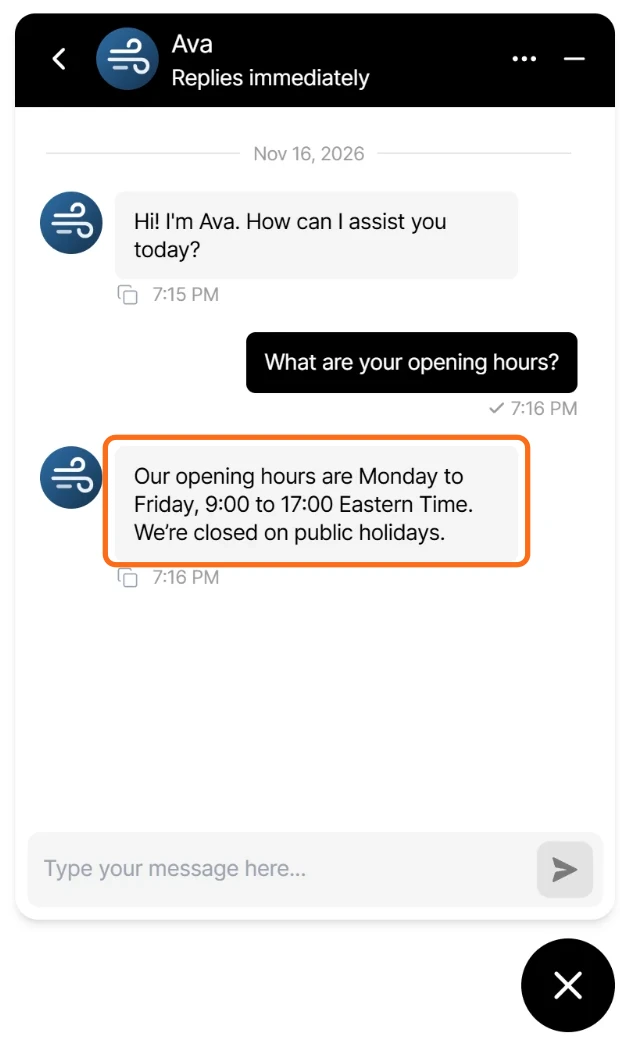
Type What are your opening hours? Your AI agent answers from your snippet.
-
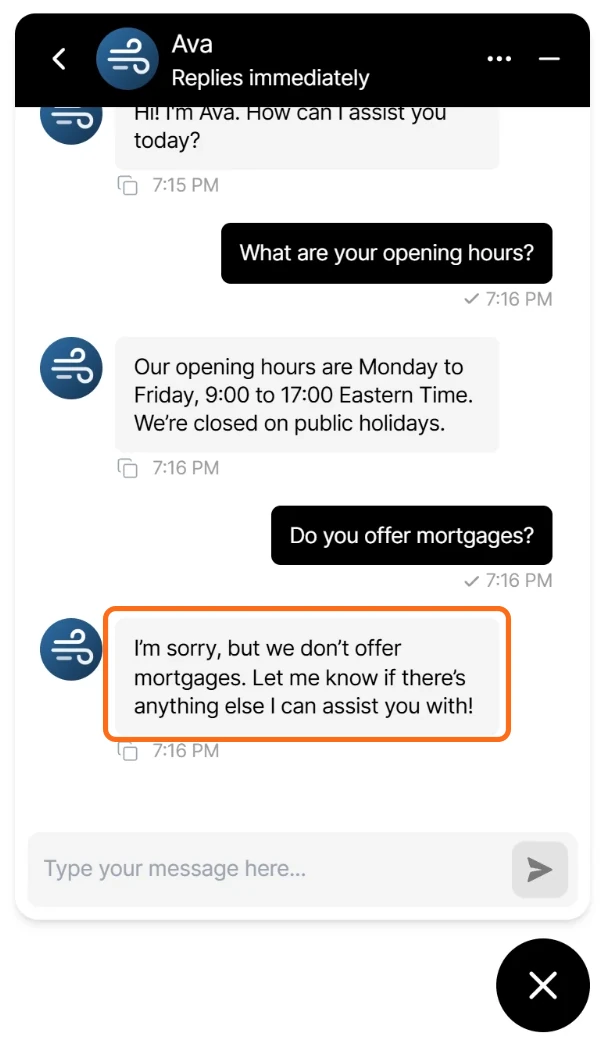
Type Do you offer mortgages? Your snippet doesn’t mention mortgages, so your AI agent says Northwind doesn’t offer them.
Checkpoint: your AI agent answers what your snippet covers, and says so when it can’t help with something.
Step 4 of 5 done
Next: Publish on your website