Workflows
Create ticket
Turn the chat into a ticket your team answers by email, and optionally email the person.
Create ticket opens a ticket – a conversation your team answers by email – such as a complaint, a refund request or a question nobody can answer right now. It can assign the ticket, tag it, fill in its custom fields and email the person.
For an example, see Set up your first workflow, where an Ask survey collects the details first.
Settings
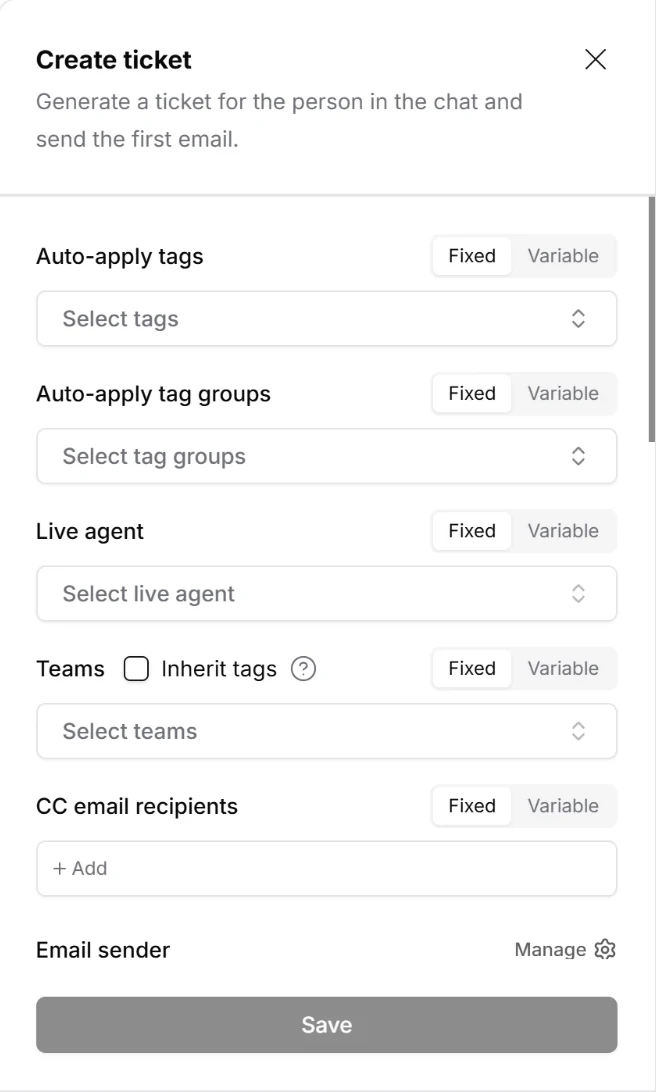
| Setting | What it does |
|---|---|
| Auto-apply tags | Optional. Tags to add to the ticket. |
| Auto-apply tag groups | Optional. Tag groups to add to the ticket. |
| Live agent | Optional. The live agent to assign the ticket to. Only live agents who can manage tickets are listed. |
| Teams | Optional. One or more teams to assign the ticket to. Tick Inherit tags to also add each team’s own tags. |
| CC email recipients | Optional. Up to 10 email addresses to copy on the email to the person. |
| Email sender | Optional. The address the emails come from. Without one, Proto’s own address is used. Select Manage to set up your own domain. |
| Subject | Required. The ticket’s subject, and the subject of its emails. |
| Description | Optional. What the ticket is about, such as {description}. |
| Full name | Required. The person’s name, such as {full_name}. |
Required. Where to email the person, such as {email_address}. | |
| Phone number | Optional. |
| Email template | Optional. Two templates: the first is emailed to the person, the second to the assignees. Select Manage to write templates. |
| Custom fields | Optional. Ticket custom fields to fill in. Mandatory fields are added for you, marked *, and can’t be removed – see Mandatory custom fields. |
| Attachment(s) | Optional. A variable that holds files to attach to the email to the person, such as receipt from an Ask survey question set to Attachment(s). |
Subject, Description, Full name, Email and Phone number can include variables, such as {full_name}. The settings are the same in every language.
Fixed or variable
Some settings have a Fixed / Variable switch: the tags, tag groups, Live agent, Teams, CC email recipients, both email templates and each custom field.
- Fixed – choose the value in the panel. It’s the same for every ticket.
- Variable – enter a variable, or an expression, that gives the value when the workflow runs. Use it when the value depends on the chat – for example, a team ID from Auto team match, such as
team.id.
| Setting | The variable must hold |
|---|---|
| Tags, tag groups, Teams | An ID, or a list of IDs |
| Live agent | A user ID |
| CC email recipients | An email address, or a list of them |
| Email templates | A template ID |
| A custom field | A value that fits the field, such as one of its options |
A value that doesn’t fit – such as a team that isn’t in your teamspace, or an address that isn’t valid – is left out, and the ticket is still created.
What happens
- Proto checks the mandatory custom fields. If one has no valid value, it creates nothing, and the Error branch runs.
- Proto creates the ticket, linked to this chat, and it appears in the Inbox.
- It adds your tags, and copies this chat’s custom fields to the ticket before filling in yours.
- It assigns the ticket to the Teams, then to the Live agent. With a live agent, the ticket is Open – otherwise it’s Pending.
- With an assignee template, it emails the live agent and everyone in the teams.
- With an Email template for the person, it emails them, copying in the CC email recipients and attaching the Attachment(s). Their reply goes to the ticket.
- The Success branch runs.
The ticket’s emails have its number in the subject, such as [Ticket #A1B2C3] Refund for order 1042.
Branches
| Branch | Runs when |
|---|---|
| Success | The ticket was created. |
| Error | A mandatory custom field has no valid value, so no ticket was created. |
With an empty branch, the workflow carries on with the action after Create ticket.
Tip: under Success, tell the person their ticket is on its way, such as We’ve logged your request as ticket {_new_ticket.short_id}. Under Error, offer a Live agent handoff.
Use the result
Later actions can read the ticket in _new_ticket:
| Part | What it holds |
|---|---|
id | The ticket’s ID |
short_id | The ticket’s number, as in the email subject |
subject, description | The subject and description |
customer_id | The person the ticket is for |
custom_fields | The ticket’s custom fields, by name |
assignee_user_id | The assigned live agent’s user ID, or empty |
assigned_team_ids | The assigned teams’ IDs |
Mandatory custom fields
Your teamspace can make some ticket custom fields mandatory, in Settings, under Teamspace, then Tickets, then Mandatory custom fields. A ticket then can’t be created – by a live agent, the External API or an AI agent – until each of those fields has a valid value.
In Create ticket, mandatory fields are added to Custom fields for you. Give each one a value, or a variable that will hold one. A value already on the chat counts too, because it’s copied to the ticket.
Important: turning on mandatory custom fields can stop workflows that already create tickets. Check each Create ticket action has a value for every mandatory field, and add something under Error.
Good to know
- The person is only emailed if you choose an Email template for them. Without one, the ticket is created quietly, and the CC email recipients and Attachment(s) aren’t used – tell the person in a Send message.
- Attachments that can’t be sent are left out, and the email still goes. Up to 10 files can be attached, 20 MB in all.
- If the person in the chat already has a different email address, Proto creates a new person for the ticket.
- Email isn’t checked. Collect it with an Ask survey question set to Email, so you know it’s valid.
- You can create a ticket from your own systems too – see Create a ticket in the External API.