Workflows
Send message
Send the person a message, with optional quick replies they can select.
Send message sends a message to the person, and can offer quick replies – buttons the person selects instead of typing.
Settings
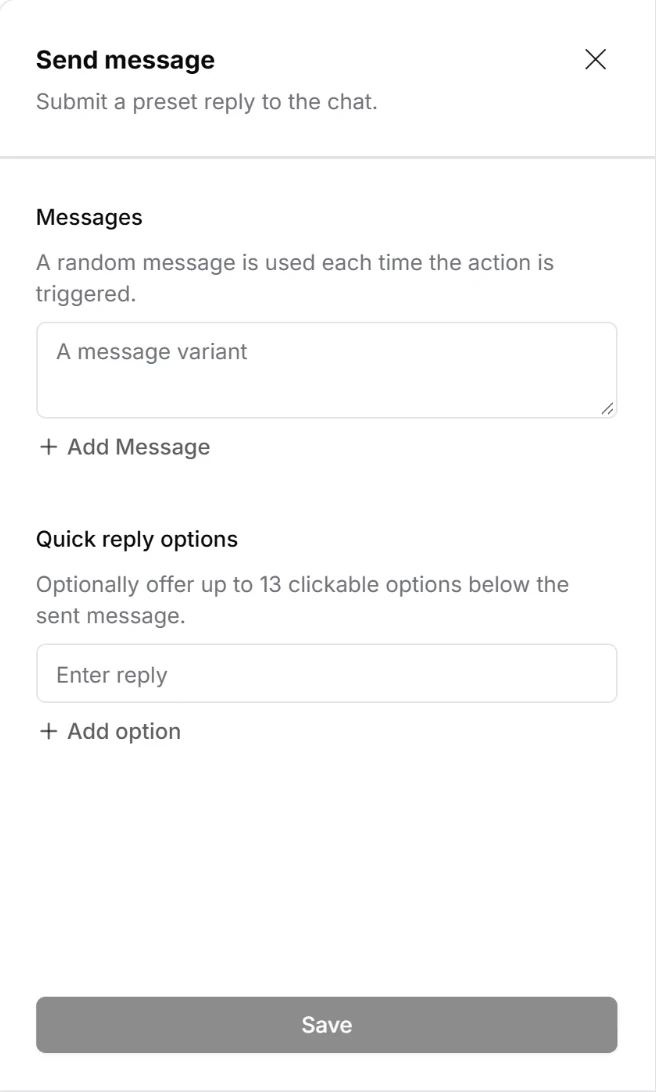
| Setting | What it does |
|---|---|
| Messages | The message to send. Select Add Message to add other ways of saying it – your AI agent picks one at random each time, so repeat visitors don’t always see the same words. |
| Quick reply options | Up to 13 short answers shown under the message, such as Yes and No. Select Add option for each one. |
Both can include variables, such as Hi {_customer.name}. In Webchat, messages can also use Markdown, such as [our returns policy](https://example.com/returns) for a link.
What happens
The person gets one message, then the workflow carries on straight away – it doesn’t wait for a reply.
Selecting a quick reply sends its text as the person’s message, as if they’d typed it. Your AI agent then picks a workflow for it as usual – so add a trigger with that text in its Training phrases to handle each quick reply.
If your AI agent has a voice and the chat is a voice call, the message is spoken.
Good to know
- To send several messages in a row, add one Send message for each. Several Messages in one action are alternatives, not a sequence.
- Each language has its own messages and quick replies. A language you haven’t filled in sends nothing.
- Quick replies aren’t offered in Chat closed or Chat timeout – the chat is ending.
On other channels
| Channel | Quick replies |
|---|---|
| Up to 3 show as buttons. With more, they’re in a Menu list, which shows the first 10. Button text is cut to 20 characters, and list items to 24. | |
| Facebook Messenger | Text is cut to 20 characters. |
| Email and Africa’s Talking | Not shown. |